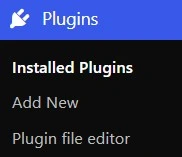
In order to get started with Elementor we must first install it in the plugins tab, this should be in the left menu options when you sign in to your site using the link :
— https://*YourSite*/wp-admin —
The Tab should look like this :
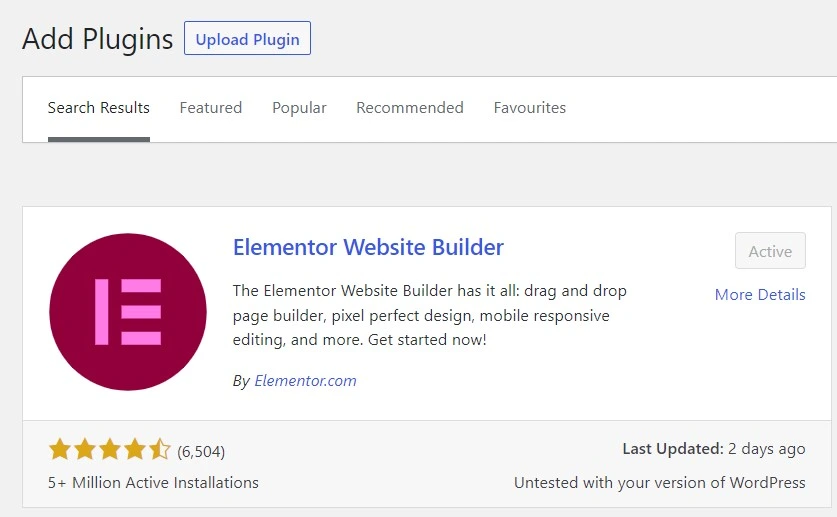
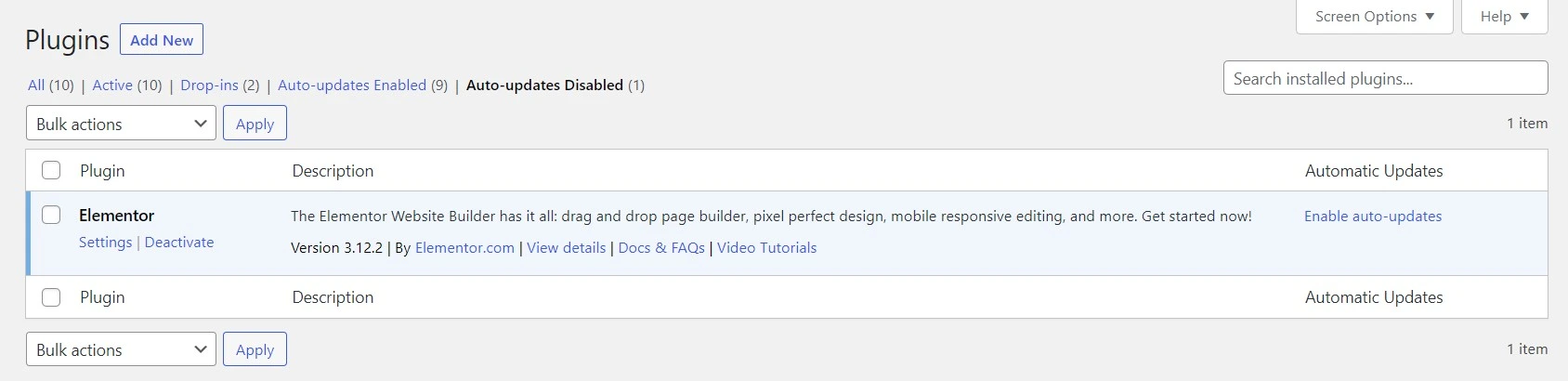
Go into the “Add Plugins” tab and search Elementor Installing it then pressing to make it ‘Active’ It should look like this…
2) Opening Elementor
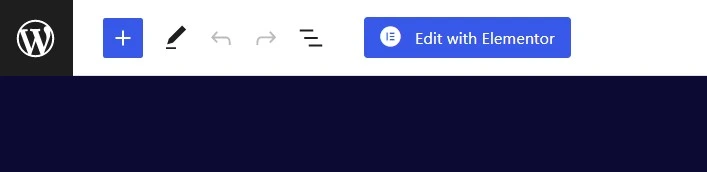
To Start using Elementor, simply go on the post you wish to edit set the template to elementor canvas or full width for best results and press edit with elementor as shown here…
3) Adding Sections
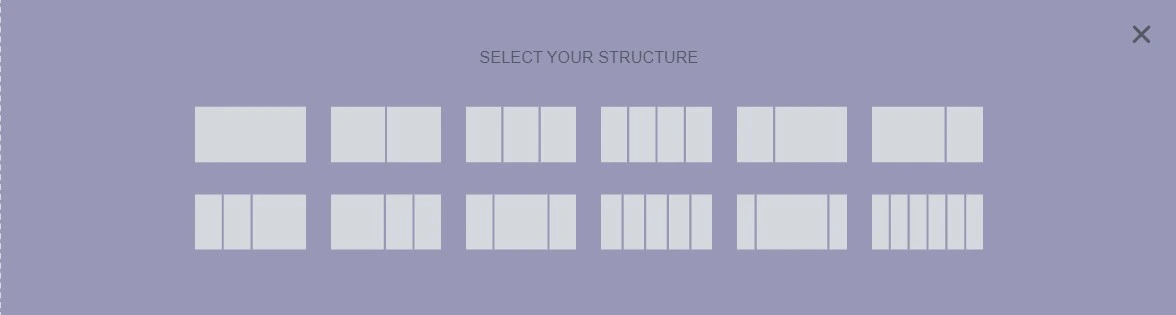
To start adding elements you must first add a section these act as the housing for all your columns the plus button opens the structure selector allowing you to pick the number of columns you require within your section, the folder icon alternatively takes you to find templates for if you want to fast-track your design with premade sections.
4) Adding Elements
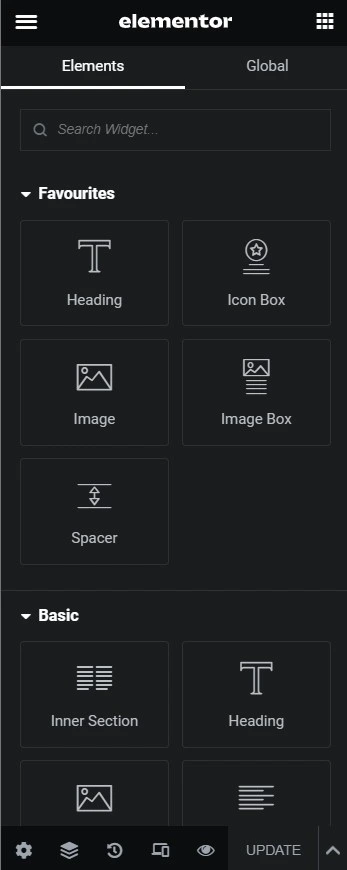
Elements as seen here are the actual blocks that will be displayed on your website such as a block of text, a title or an image for example. These can be dragged from the sidebar into the columns within your section and edited to your likeing to make any layout you need. You can add more elements with plugins if the base elements arent enough for your specific needs however elementor comes with most of the basics you will need.
5) Modifying Elements
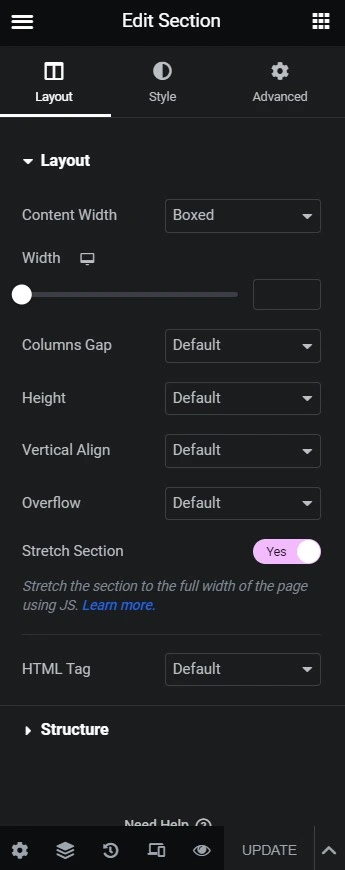
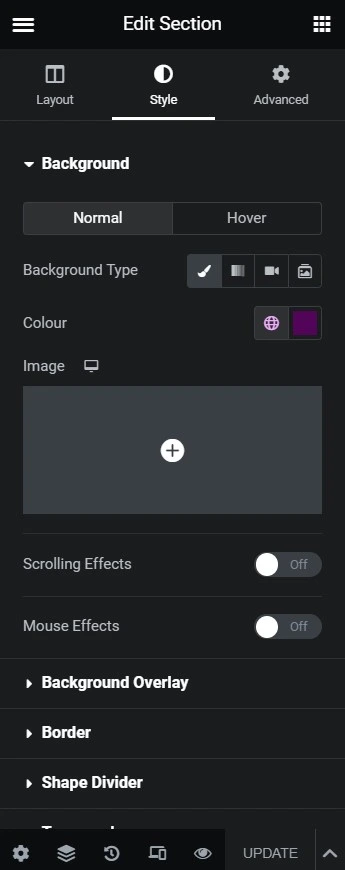
In order to customise your pages you must use the sidebar options. These appear when you have selected the element, section or column you want to edit which can be done by using right click then “Edit *what you selected*”. From there you can access these three sections each containing a whole host of options for customising your element, section or column.
6) Helpful Features
There are lots of features within elementor therefore for the purposes of this guide being for beginners i will not be getting into them all. Therefore in this section ive chosen the features I find most helpful within elementor to show how to use.
6.1) Hover Effects
Hover effects are changes that trigger when the mouse hovers over them for example text could change colour, an image could get bigger or even move slightly depending on the settings you change. These settings can appear on a number of elements usually in the style tab.
6.2) Shape Dividers
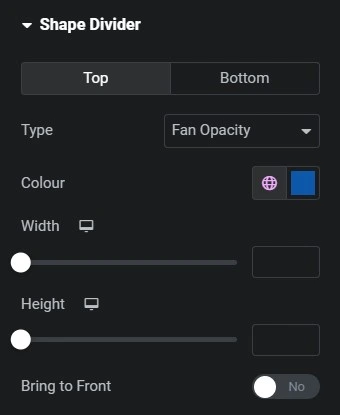
Shape Dividers are some of my Personal Favourite features appearing on the style tab it allows you to transition between different sections in a more interesting way as you can see on this webpage.
6.3) Margin and Padding
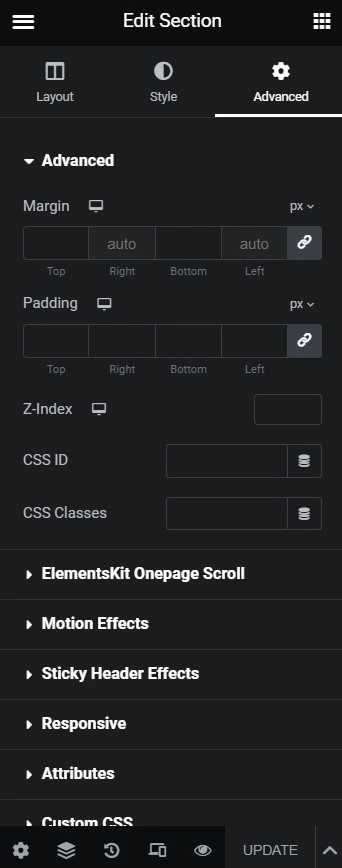
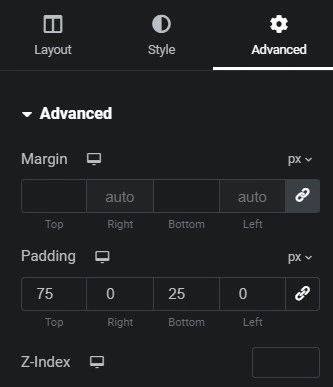
Margin and Padding are very similar but not quite the same, Margin is the space around the border of an element, whereaspadding is the space between the element and the border. This is useful to know as it allows you to move an element around to the position you need it to get it pixel perfect, for example here im using it to create space between my elements.
6.4) Z-Index
The Z-Index is also Very useful as it it the order in which things are placed on the screen i.e. It allows you to choose which element goes on top of which.
7)Previewing/Saving your work
Despite Elementor coming with a live preview it is always good to preview your work in a non elementor window so you can see how your progress would actually look when made live and adjust to fix any errors that were not displayed in the editor. To do this look at the bottom of the sidebar and press the Eye icon displayed here:
This is not the only important button down in this section the “UPDATE” button is an essential part of a healthy workflow as it saves your progress so you dont lose your work upon exiting the browser its important to do this after most steps (This will appear as a “PUBLISH” button if not yet published). The other icons are General Settings, Layers/navigation, History allowing you to revert to a previous state from this session and the responsive tab which allows you to switch between different screen sizes to see and change how your website responds to different screen sizes.