
EX1 – Adobe XD Prototyping
Prototyping Basics
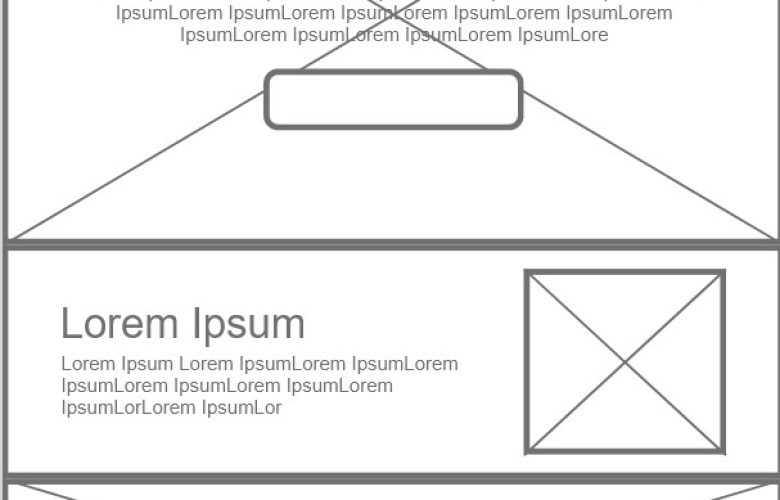
So what actually is prototyping? Starting with the actual definition Cambridge Dictionary defines it as “the activity of making basic models or designs for a machine or other industrial product” (Cambridge dictionary , no date). To put in different terms to prototype is to make a less detailed, incomplete version (model) of something in order to either prove a concept, visualise ideas or top simply move a project closer to completion, before refinement. This is a useful practical skill for any designer to have as it helps visualise your ideas to clients and make any adjustments necessary without the hassle of redoing the final product after completion.

Components
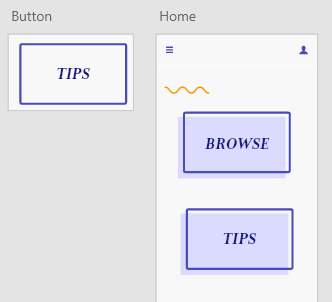
For the first part of the exercise we went over components, these are the collections of elements that make up a single part on a prototype, for example a button, which would be comprised of text, a background, maybe even an outline and or a shadow, these are helpful as it groups all the relevant pieces of an element together while also appearing in the components menu so you can easily replicate any element you create and the different states it has without recreating it every time. Changes made to the master component will be made to the sub components too allowing for quick and easy modifications.
As I referenced earlier these can also have different states such as toggled on or off, or the hover state. Utilising these allows another element of customisation to designs allowing the designer to create interactions based on what the user is doing on the page.
While Looking at components it’s also important to consider global colours, creating a colour component in XD is easy then from that point any object in your design using that colour can be changed just by changing the master colour in the component list. This is useful as it allows the designer to change and test out a variety of colour palettes without having to individually change each component manually by clicking on them speeding up the workflow to a final design.
Interactions
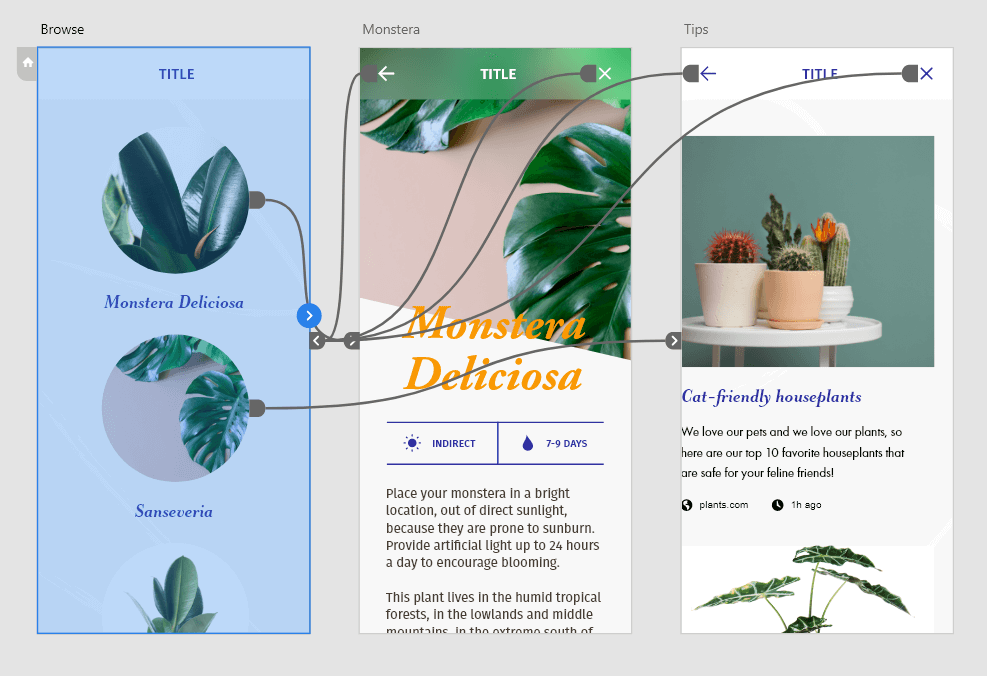
The First Step as part of this Practical Exercise was looking into what’s needed in order to reach the prototyping stage in a project. For this, we followed a tutorial going back over the basics of the program, how the user can interact with components and how to attach components to certain pages when pressed by the user. As you can see in this example the user clicks and moves to the next page changing the screen, this can be improved with animation however for a low fidelity prototype the basic click to move on should be sufficient.
Mobile First Design
Another thing we looked at was designing from a Mobile-first perspective. Essentially reversing my current process of web first then shrinking it down to mobile-ready. The main reason for this change in development style and why it’s increasingly more required is due to the fact that more and more people are transitioning from browsing on their computers to their mobile devices making the mobile version increasingly more important to the everyday viewer of a page.
Another benefit that comes from this is the fact that as a designer it makes you prioritise the important graphics and text elements a page needs in order to get its point across in the most effective way possible, allowing for cleaner designs, than those designed primarily for the desktop which often have lots of unnecessary graphics and other elements which can cause clutter on smaller screens.
References
-
Prototyping | English meaning – cambridge dictionary (no date) Cambridge Dictionary. Available at: https://dictionary.cambridge.org/dictionary/english/prototyping (Accessed: 01 January 2024).
