
Ex4 – Incorporating moving image / video with Adobe Aftereffects & Adobe XD
XD Animation
When looking at the interactions in XD if not animated correctly they can end up looking quite abrupt, therefore when working on the high fidelity final prototype of a project in XD smoother Animations tend to be the best way to go. For this we use a function built in to the tool called Auto Animate, essentially acting in the same way as the morph transition in powerpoint, where components copied from one screen to another in a different place will travel from the original spot to the new one smoothly rather than just appearing in a new position.
As you can see the transition is much smoother using the auto animate function allowing components to move seamlessly rather than disappearing and reappearing between slides.
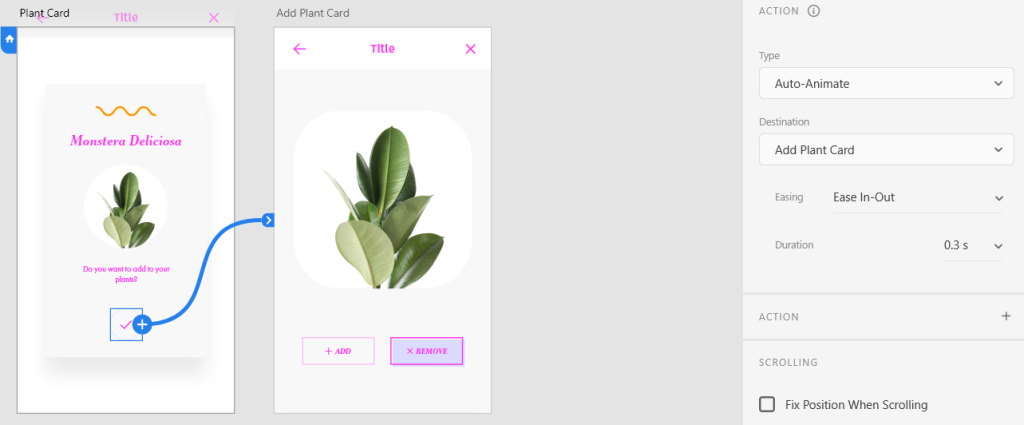
As you can see in the prototype menu all you need to do to achieve this is attach the two pages where reused items are moved turn on auto animate and the elements should move to their places seamlessly between pages.
Aftereffects Animation
Moving on to After effects this program focuses on how objects move, certain types of animations and other movements, as opposed to XD which is more for prototyping. Using motion graphics can help liven up any design pulling interest to specific areas or even just to make the page more interesting visually, a good use of moving image and video should be able to engage the user with the page in one way or another an easy task for video as any adding any movement can make uninteresting words into something that attracts attention. Take these aftereffects tutorial tasks for example, the words are unrelated and uninteresting however its the motion that makes them interesting to the user.
For this tutorial in particular we focused on Text animations and how to achieve them while learning the basics of Aftereffects in the process. The most important part of aftereffects is the timeline bar this is where your animations, effects and sounds will appear when your editing a video. It also presents a series of menus for each element on the screen (in this example text and transform menus) which are used to change values between different parts on the timeline essentially being the backbone of all motion and animation points made in after effects.
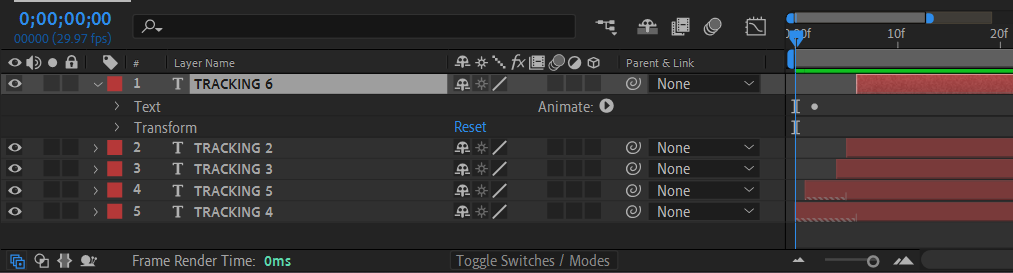
For the next tutorials we followed a similar pattern creating different unique animations with text as the main focus for the animations, the first one being the scrolling animation. This was achieved by forcing the text to align with a path created by a rectangle shape. Then on the timeline i just needed to adjust the values at the start and end of the timeline for the animation in order to create the desired effect. I also added a movement of one of the boxes from the centre outwards and also changed values in order to reverse the direction the text goes when they align together.
Moving on to the next tutorial it was a more advanced after effects animation that required the use of masks and strokes to draw an outline around the word “Mask”. Once the mask was created all i needed to do was add and adjust the start value of the stroke effect from 0% (Visible) to 100% (Invisible) and after effects does the rest These types of animations are useful for Logo Introductions or just general titles however this isn’t all after effects if good for it’s a great tool for creating and editing video projects, clipping together different videos adding text and animating between them this is where Freedom festival could benefit.
